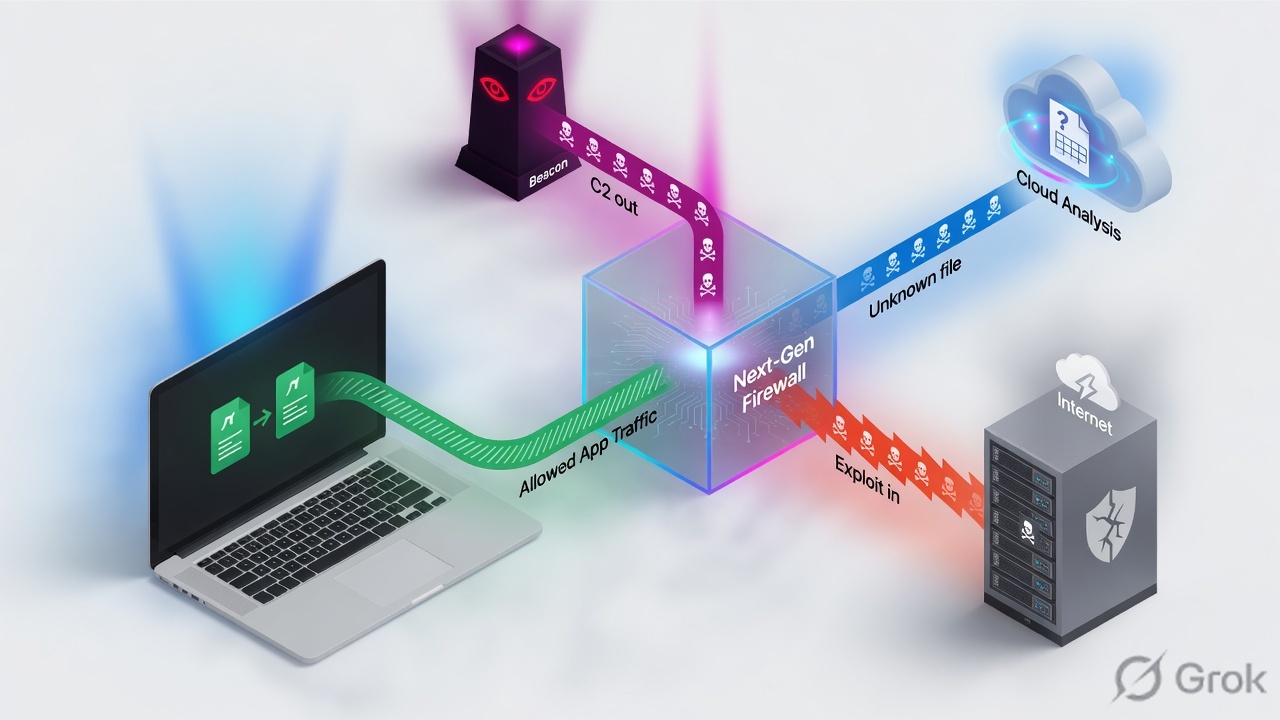
Anti-Spyware stops an already-infected host phoning home (and can sinkhole malicious DNS so the client, not the resolver, shows up in Traffic). Vulnerability Protection stops the exploit that delivered the malware. WildFire Analysis forwards unknown files; Antivirus uses the verdicts. A profile is inert until an Allow Security rule references it. One false positive = one Threat ID on the Exceptions tab (Exempt IP if you can). Never disable the profile. Green close = Monitor → Logs → Threat shows Threat ID, Action, Severity, Rule.
1. Why Allow is not inspection
App-ID can Allow web-browsing and still pass an exploit inside that session. Antivirus can catch a known PE and still miss the buffer overflow that dropped it, and the HTTPS beacon that follows. Those are different Content-ID jobs, attached as different Security profiles on the same Allow rule.
Official split, from the Vulnerability Protection help: Anti-Spyware helps identify infected hosts as traffic leaves the network. Vulnerability Protection protects against threats entering the network — buffer overflows, illegal code execution, CVE exploits against clients and servers.
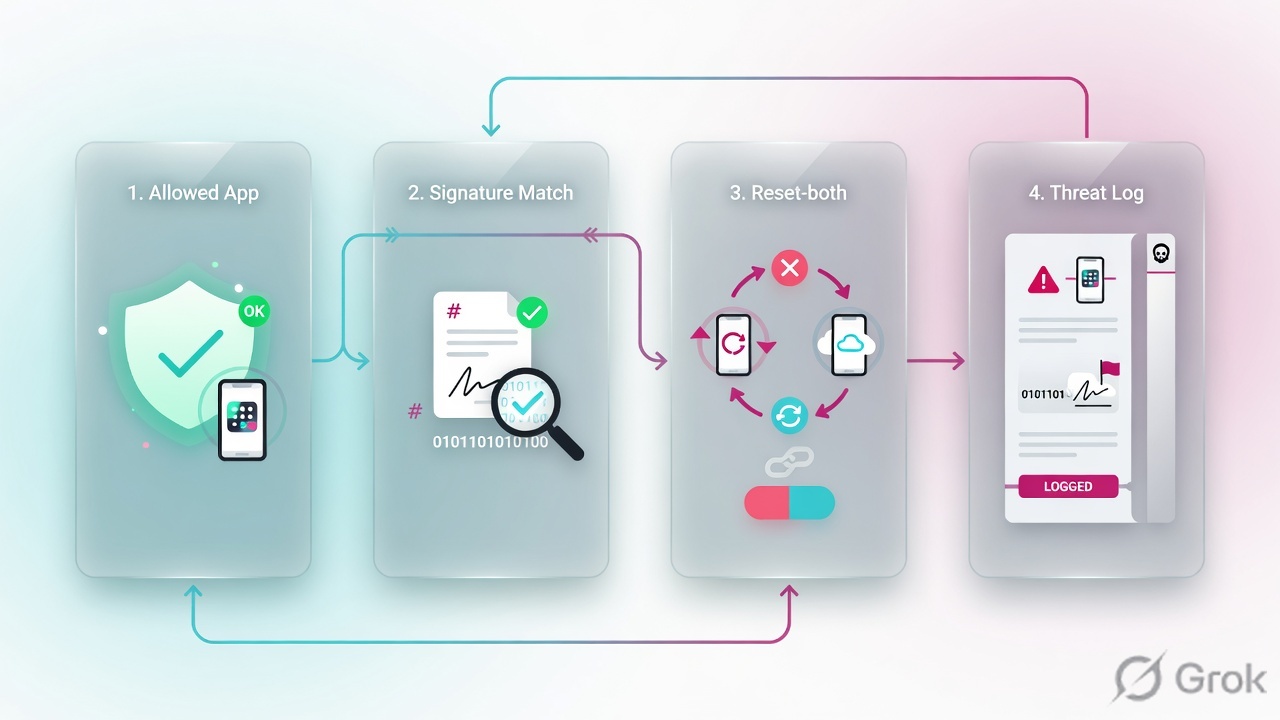
Threat ID — unique signature number in Monitor → Logs → Threat (ID column) and in Threat Vault. Example from official docs: Threat ID 40001 = FTP brute-force.
Exception — one signature (optionally one unicast IP) whose Action you override inside a profile. The rest of the profile keeps working.
Disable the profile — removing Anti-Spyware / Vulnerability Protection from the Allow rule, or setting a whole severity rule to Allow. That is a hole, not a tune.
DNS sinkhole — Anti-Spyware forges the DNS answer to a sinkhole IP so the infected client then connects to that IP. Traffic logs name the host. A plain DNS block only names the resolver.
Allow (profile action) — official “exclude from enforcement.” It does not write a Threat log and does not packet-capture. Use Alert while you investigate.
2. Mental model · three engines on one Allow
Hold three parts. Interviews fail when people call all of this “the antivirus profile.”
1. Anti-Spyware
C2 / spyware already on a host trying to leave. Signature Policies by severity. DNS Policies can sinkhole. Inline Cloud Analysis (Advanced Threat Prevention license) looks at unknown C2. Path: Objects → Security Profiles → Anti-Spyware.
2. Vulnerability Protection
Exploit signatures (client or server, CVE / vendor ID). Rules tab is a mini-rulebase — top down, even at the same severity. Path: Objects → Security Profiles → Vulnerability Protection.
3. Antivirus + WildFire
Files. Antivirus decoders (HTTP, FTP, SMB, SMTP, IMAP, POP3). WildFire Analysis forwards unknown files (and, on public-cloud rules, files that already match AV) and returns benign / grayware / malicious / phishing. Path: Objects → Security Profiles → Antivirus and WildFire Analysis.
4. Attach, or it never runs
A profile is only active when a Security policy Allow references it (directly or via a Profile Group). Deny / drop Security actions do not “scan then block” — they never reach Content-ID.
Vulnerability Protection is the exploit. Anti-Spyware is the phone-home. WildFire is the unknown file. I attach all three to Allow. If one ID is noisy I exception that ID — I do not disable the profile.
Read left → right, then down. Diamond is later. If the session is still ciphertext, every box on the second row is blind.
Predefined starting points (Set Up Antivirus, Anti-Spyware, and Vulnerability Protection):
- Antivirus
default— block on HTTP / FTP / SMB; alert on SMTP / IMAP / POP3. - Anti-Spyware / Vulnerability
default— Palo Alto’s per-signature default on critical, high, and medium. Does not detect low and informational. - Anti-Spyware / Vulnerability
strict— block / reset-both on critical, high, and medium; default action on low and informational. - WildFire Analysis
default— forward all unknown files. Best-practice text: if you clone it, still forward any file type.
3. Decision · exception vs disable
Read this before you open Objects → Security Profiles. The ticket is almost never “turn Threat Prevention off.” It is “this one ID (or this one scanner IP) is wrong.”
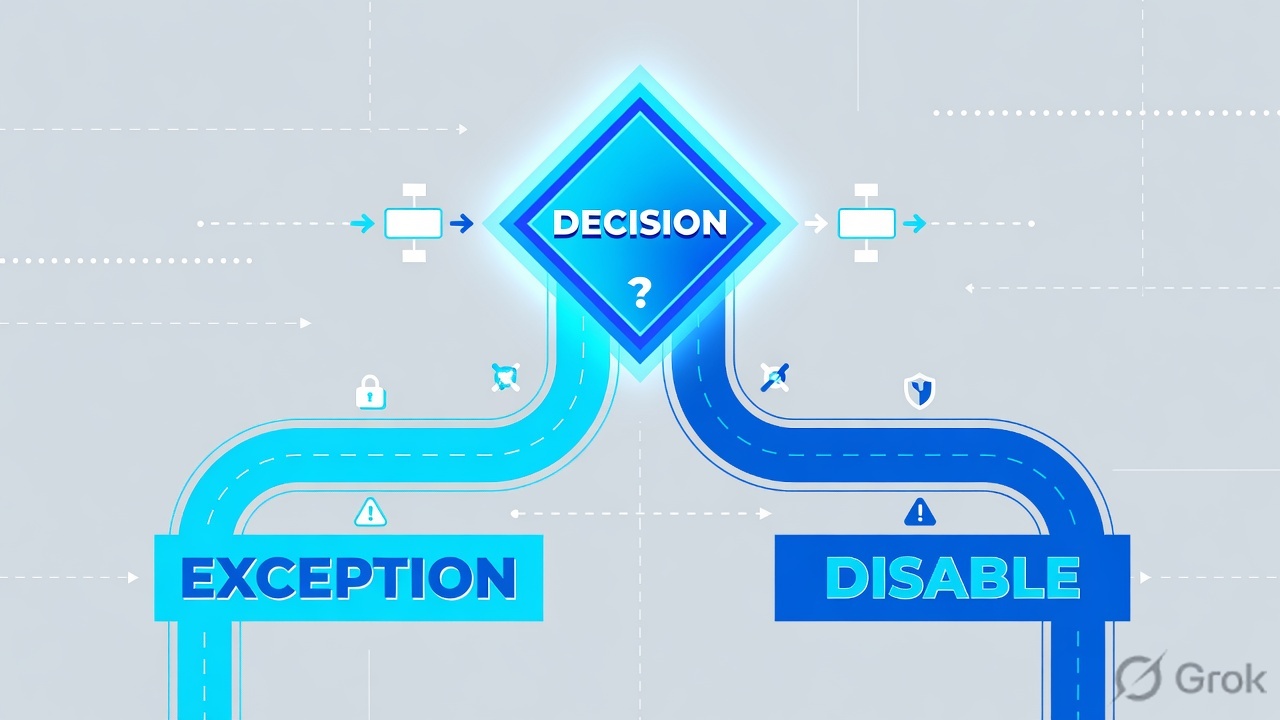
Official Create Threat Exceptions: for a false positive, set Action to Allow — and open a TAC case so the signature can be fixed, then remove the exception. Alert first if you still need proof in the Threat log.
4. How to choose profiles and actions
Clone strict for internet edges. Keep a milder clone for trust-to-trust only if you must. Profile rules evaluate top down, same as Security — put the tighter rule above a broader same-severity rule.
| You see | Engine | Start with | Why |
|---|---|---|---|
| Infected PC beacons to a C2 IP / domain | Anti-Spyware | Clone strict; DNS Policies action = sinkhole |
Phone-home is spyware, not a CVE. Sinkhole names the client after the resolver. |
| Exploit against your published web / SMB / RDP | Vulnerability Protection | Clone strict; Host Type = server on that rule |
Inbound exploits. Best practice: reset-both on critical / high / medium. |
| Drive-by or client-side CVE in the browser | Vulnerability Protection | Same profile; Host Type = client (or any) | Still VP, not Anti-Spyware. Direction of “badness” is the exploit, not the later C2. |
| Unknown PE / Office / PDF / APK | WildFire Analysis + Antivirus | WF default (any file, both directions) + AV decoders |
WF verdicts land in WildFire Submissions. AV uses the signatures that follow. |
| One scanner IP trips one Threat ID | Same profile, Exceptions tab | Enable that ID; Exempt IP = that unicast address; Action = Alert then Allow | Up to 100 unicast IPs per signature. No new Security rule required. |
| Zero-day C2 with no signature yet | Anti-Spyware → Inline Cloud Analysis | Enable; PAN recommends Reset-Both (default is alert) | Needs Advanced Threat Prevention. This is not “turn off signatures.” |
Profile actions you will actually set (Anti-Spyware and Vulnerability Protection help):
| Action | What the wire does | Threat log? |
|---|---|---|
| Default | Whatever Palo Alto coded on that signature (shown as default (alert) or default (reset-both)) | Follows that inner action |
| Alert | Session continues | Yes — use this while you investigate a possible false positive |
| Allow | Session continues; signature is excluded | No log, no packet capture |
| Drop | Packets discarded; TCP peers often retransmit and hang | Yes |
| Reset Client / Server / Both | TCP RST that side (or both). UDP is dropped. | Yes. reset-both may log as reset-server when a 503 block page is shown |
| Block IP | Source, or source-destination pair, for a configured time | Yes — easy to over-block a shared NAT or a server |
| Sinkhole (DNS Policies) | Forge the DNS answer to the sinkhole IPv4/IPv6 | Yes — filter (action eq sinkhole) |
Source: Security Profile: Vulnerability Protection and Create Best Practice Security Profiles — reset-both on client and server critical / high / medium; default on informational and low; extended packet capture on the severities you block (default 5 packets); do not extended-capture informational.
Do not remove the profile from the Allow because one ID is loud. Do not set the critical/high/medium rule to Allow. Do not exception a DNS signature on the spyware Exceptions list — use DNS Exceptions. Do not install a WildFire-only story and skip VP/AS. Do not expect signatures to fire on undecrypted TLS.
5. Runbook · Side A profiles, Side B attach + exception, Side C Threat log
Lab story (placeholder IPs only): users in zone trust (10.1.8.0/24) browse and DNS to untrust. Scanner 10.1.8.50 trips official example Threat ID 40001. You will keep strict-style reset-both for everyone else, sinkhole malicious DNS, forward unknown files, then prove a spyware or vulnerability row in the Threat log.
Primary source for clicks: Set Up Antivirus, Anti-Spyware, and Vulnerability Protection and Create Threat Exceptions (PAN-OS & Panorama).
Side A — objects first
-
License and content, or nothing matches
Device → Licenses must show Threat Prevention or Advanced Threat Prevention. Device → Dynamic Updates: install current Applications and Threats (and WildFire). Signatures you exception today can be retired or reused — read the content release notes.
-
Anti-Spyware clone
Objects → Security Profiles → Anti-Spyware. Clone
stricttoas-inet-strict. Signature Policies: critical / high / medium = reset-both; low / informational = default. DNS Policies: Signature Source includesdefault-paloalto-dns; Policy Action = sinkhole; Sinkhole enabled (default sinkhole.paloaltonetworks.com / IPv6 ::1, or your lab sinkhole). Packet capture: single-packet is enough on DNS. If you have ATP, Inline Cloud Analysis → Enable; set engines to Reset-Both when you are ready (ship default is alert). -
Vulnerability Protection clone
Objects → Security Profiles → Vulnerability Protection. Clone
stricttovp-inet-strict. Rules tab: client+server, critical/high/medium = reset-both, extended-capture; low = default + single-packet; skip informational capture. Leave Exceptions empty until Side B. -
Antivirus + WildFire
Objects → Security Profiles → Antivirus: start from
default, keep HTTP/FTP/SMB at block. Objects → Security Profiles → WildFire Analysis: usedefaultor clone it and still match any application, any file type, upload and download, public-cloud. Decrypted TLS is forwarded only if a decryption policy actually decrypted the session. -
Profile Group
Objects → Security Profile Groups → Add
pg-inet-strict. Attach Antivirus, Anti-Spywareas-inet-strict, Vulnerability Protectionvp-inet-strict, WildFire Analysis. URL Filtering and File Blocking belong here too, but they are not this lesson.
Side B — attach to Allow, then exception one ID
-
Security rule Actions tab
Policies → Security on the internet Allow (example
allow-users-web-dns). Actions: Action = Allow. Profile Type = Group (or Profiles) →pg-inet-strict. Log at Session End stays on. For the DNS sinkhole hunt, also check Log at Session Start on that rule so the client → sinkhole-IP SYN is visible. -
Find the Threat ID from evidence, not from memory
Monitor → Logs → Threat (or ACC → Threat Activity). Copy the ID. Hover Threat Name → Exception to open Threat Vault details if Device → Setup → Management → Logging and Reporting → Enable Threat Vault Access is on (default).
-
Exception the ID — do not drop the profile
Spyware or vulnerability: open that profile → Signature Exceptions (Anti-Spyware) or Exceptions (Vulnerability Protection) → Show all signatures → filter the ID → check Enable → Action = Alert (or Allow after TAC confirms) → add Exempt IP
10.1.8.50(unicast only, no mask; max 100). DNS IDs go on DNS Exceptions. Antivirus IDs go on Antivirus → Signature Exceptions (exclude only). -
Commit
Profiles and the Security rule are not live until Commit. Note the Threat ID and Exempt IP in the change ticket so the next engineer can remove the exception after the content fix.
Objects → Security Profiles → Vulnerability Protection → vp-inet-strict
Vulnerability Protection Profile
Click next: OK, Commit, re-run the scanner from 10.1.8.50, then open Monitor → Logs → Threat with (threatid eq 40001). Source: Objects → Security Profiles → Vulnerability Protection → Exceptions (Create Threat Exceptions, PAN-OS).
Side C — prove it in the Threat log
-
Generate one hit you expect to reset, and one you exceptioned
From a normal user (not 10.1.8.50) trigger a lab signature or a known test sample. From 10.1.8.50 re-run the scanner. For DNS, query a domain on
default-paloalto-dnsand then watch who connects to the sinkhole IP. -
Threat log — the close for IPS
Monitor → Logs → Threat. Quote Type (vulnerability / spyware / virus), ID, Threat Name, Severity, Action, Rule (the Security rule name), Application, Source, Destination. Filter examples:
(threatid eq 40001),(subtype eq spyware),(action eq sinkhole),(action eq reset-both). -
Sinkhole — the close for the infected host
Threat log
(action eq sinkhole)often still shows the DNS resolver as source if the firewall sits north of it. The patient is the host in Monitor → Logs → Traffic whose destination is the sinkhole IP. -
WildFire — different log
Unknown-file verdicts are Monitor → Logs → WildFire Submissions (malware / phishing / grayware / benign), not a substitute for the Threat log. A later AV hit for that hash will show Type virus / wildfire-virus in Threat.
Monitor → Logs → Threat
Threat · filter (rule eq allow-users-web-dns)
Green close: same Threat ID alerts on the exempt IP and still reset-boths everyone else; sinkhole rows exist; Traffic to the sinkhole IP names the client. Source: Learn More About Threat Signatures + Configure DNS Sinkholing.
Monitor → Logs → Threat: rule=allow-users-web-dns · Type matches the engine (spyware / vulnerability / virus) · Threat ID you expect · Action is reset-both, alert, or sinkhole — not empty because someone set Allow. Exempt IP 10.1.8.50 shows alert for 40001; 10.1.8.41 still reset-both. Sinkhole hunt: Threat (action eq sinkhole) plus Traffic destination = sinkhole address, source = patient. WildFire: a Submissions row with a verdict, not “Commit succeeded.”

6. Runtime path after Commit
After go-live the packet does not “pick the safest profile.” It matches a Security Allow, then every attached profile inspects the same pass.
- Session allowed by Policies → Security (profiles on Actions).
- If TLS, decryption policy must have decrypted or signatures see ciphertext.
- App-ID identifies the app; Content-ID runs Antivirus, Anti-Spyware, Vulnerability Protection, WildFire, URL, file blocking together.
- First matching profile rule / signature action wins for that engine (profile rules are top down).
- Exception (Enable + optional Exempt IP) overrides that one signature for matching src or dest only.
- Action executes. Threat log writes unless the action is Allow. WildFire sample is queued separately.
- DNS sinkhole: client later opens a new session to the forged IP — that Traffic row is the host list.
7. Traps + proof checklist
| Symptom | Usual miss | What you prove instead |
|---|---|---|
| Profiles attached, almost no Threat rows, HTTPS malware works | No SSL Forward Proxy / Inbound Inspection | Decryption log Policy Name + Traffic Decrypted = yes on the same session. Then a Threat row. |
| One scanner outage after a content update | Someone removed VP from the group, or set medium = Allow | Exceptions tab Enable + Exempt IP. Threat ID still reset-both on other hosts. |
| “We exceptioned it” but every host is still reset | Forgot Enable, or put a network (not unicast) in Exempt IP, or exceptioned the wrong profile / vsys | Used in current security rule on the Exception hover; src/dst equals the unicast IP. |
| Threat log empty after Action = Allow | That is by design | Use Alert if you still need a row. Official Allow = no signature log. |
| Sinkhole ticket names only the DNS server | Firewall is north of the resolver; you stopped at the Threat row | Traffic log to the sinkhole IP. That source is the infected host. |
| reset-both configured, log says reset-server | 503 block page already killed the client side | Documented in the profile action help — not a second bug. |
| AV exception “won’t change to alert” | Antivirus cannot change per-ID action — only exclude | Change decoder actions on the Antivirus tab, or exclude the ID. |
| New C2 with no signature | Expecting classic Threat Prevention alone | ATP Inline Cloud Analysis on Anti-Spyware; engines at Reset-Both when you accept the posture. |
- Applications and Threats content is current; Threat Prevention license is valid.
pg-inet-strictis on every internet Allow — not only on one test rule.- DNS Policies action = sinkhole; you know the sinkhole IPv4/IPv6.
- One lab exception exists with Enable + Exempt IP; Action starts at Alert.
- One Threat row for a non-exempt host shows reset-both (or documented default).
- One Traffic row to the sinkhole IP names a client you expected.
- TAC case opened for any Allow exception; calendar reminder to remove it after the next content release.
Knowledge check
Six judgment calls. Map each one back to a promise bullet. Check answers, then Reset if you missed the exception-vs-disable distinction.
Sources
- Set Up Antivirus, Anti-Spyware, and Vulnerability Protection — predefined
default/strict; attach profiles to Allow; Threat Prevention or Advanced Threat Prevention license. - Security Profile: Anti-Spyware — C2 / phone-home; default vs strict; actions including Allow (no log), reset-both, block-ip; rule order; Objects → Security Profiles → Anti-Spyware.
- Security Profile: Vulnerability Protection — exploits entering the network; exceptions; Host Type; reset-both may log as reset-server; Objects → Security Profiles → Vulnerability Protection.
- Create Threat Exceptions — Threat ID exception vs exclude; PAN-OS Exceptions / Signature Exceptions / DNS Exceptions / Antivirus Signature Exceptions; Action = Allow for false positives; TAC case then remove.
- How DNS Sinkholing Works — forge the answer so the client connects to a sinkhole IP; resolver-as-source problem when the firewall is north of DNS.
- Configure DNS Sinkholing — DNS Policies tab;
default-paloalto-dns; Policy Action = sinkhole; attach on Actions; Threat filter(action eq sinkhole). - Learn More About Threat Signatures — Monitor → Logs → Threat ID; ACC → Threat Activity; hover Exception; Threat Vault; Exempt IP.
- Configure a WildFire Analysis Profile (PAN-OS) — Objects → Security Profiles → WildFire Analysis; forward unknown files; verdicts; attach to a Security rule.
- Advanced WildFire Best Practices — use default WildFire Analysis (any file type) on allowed traffic.
- Configure Inline Cloud Analysis — Anti-Spyware Inline Cloud Analysis; default alert; recommend Reset-Both; ATP license.
- Create Best Practice Security Profiles — reset-both on medium/high/critical; sinkhole immediately; packet-capture guidance.
- Threat Log Fields — Type spyware / vulnerability / virus / wildfire; Action values including reset-both, block-ip, sinkhole.
Related: PAN-OS Security policy · SSL/TLS decryption · URL Filtering · Session factory · SP3 architecture · Palo Alto interview hub · Palo Alto course